User Guide
Step 1
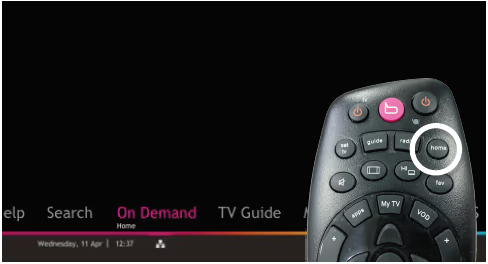
Press the Home button on your remote control
Step 2
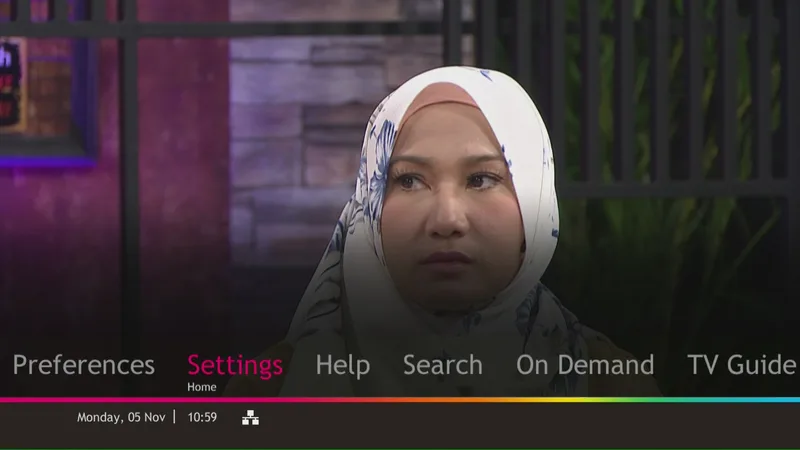
Select Settings
Step 3
Select Display
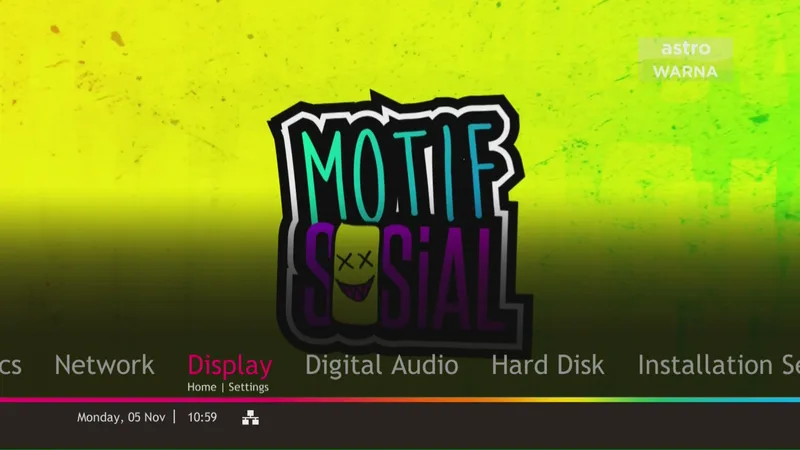
Step 4
Select TV Settings
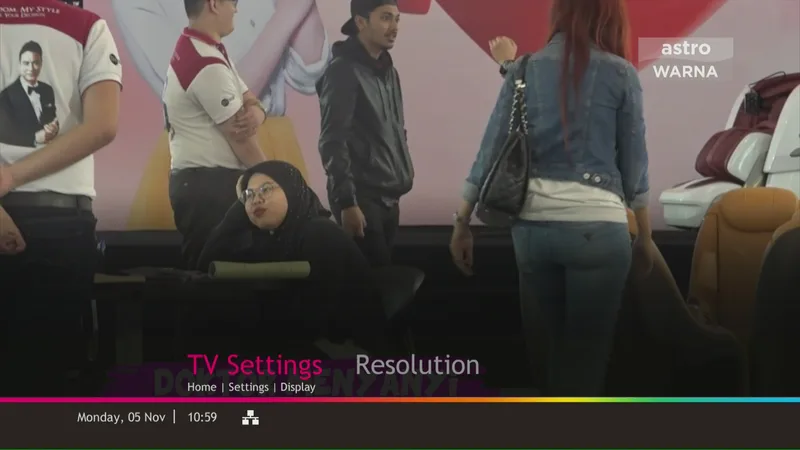
Step 5
Choose between the following TV Settings:
TV Type <standard definition="" hd=""></standard>
TV Aspect Ratio <4:3 16:9=""></4:3>
Conversion for 4:3 or 16:9 Input Video
For TV Aspect Ratio 4:3 the options are Letterbox, Cut Edges, and Fit to screen
For TV Aspect Ratio 16:9 the options are Pillar box, LB Expand, and Fit to screen
* The <high definition=""> option will only be activated when the HDMI cable is connected to your TV</high>
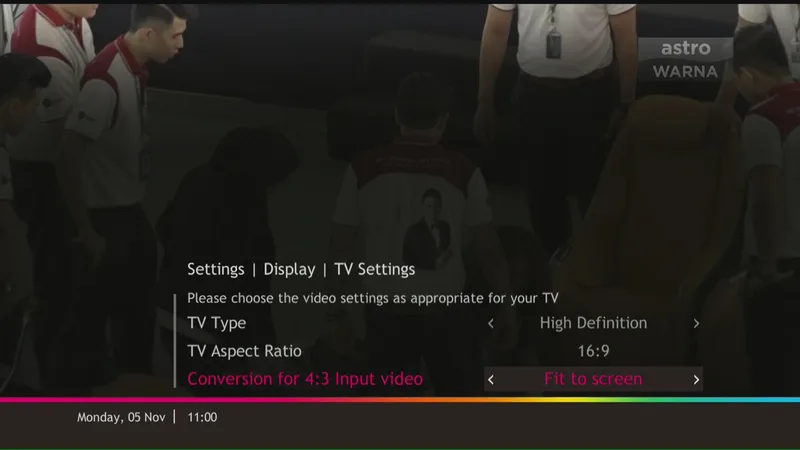
Step 6
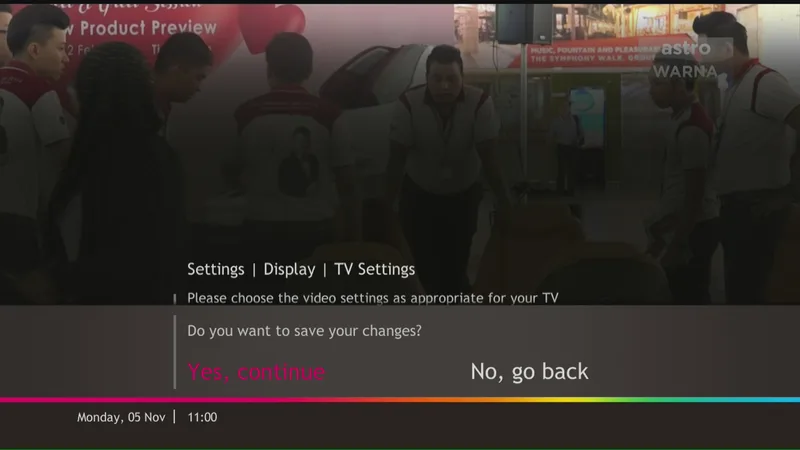
Once you have selected the right settings, press the Back/OK button on your remote control to confirm.
Step 1
Press the Home button on your remote control
Step 2
Select Preferences
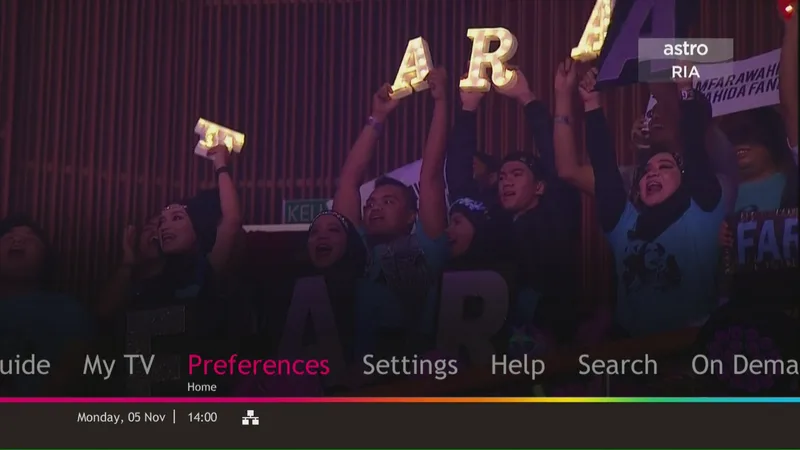
Step 3
Select Language
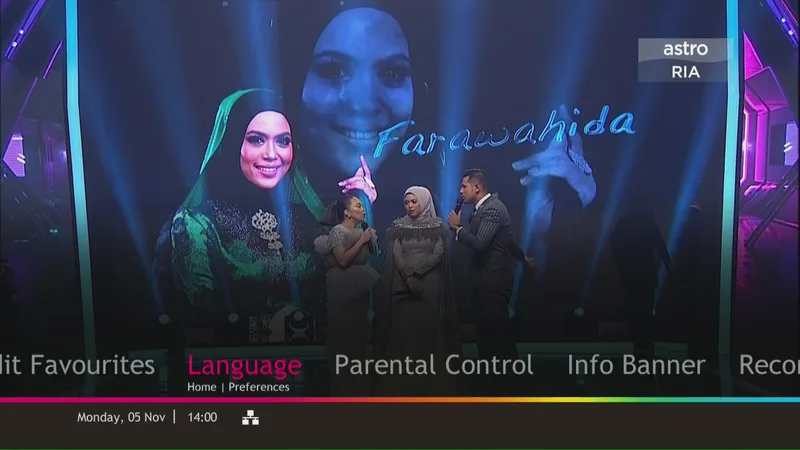
Step 4
Choose between the following 7 options:
1. Menu Language: <english bahasa="" malaysia="" chinese="" tamil=""></english>
2. Info Language: <english bahasa="" malaysia="" chinese="" tamil=""></english>
3. Audio Language 1: <english bahasa="" malaysia="" mandarin="" cantonese="" tamil="" chinese="" japanese="" hindi="" tagalog="" arabic="" korean="" indonesia="" ="" multiple></english>
4. Audio Language 2: <english bahasa="" malaysia="" mandarin="" cantonese="" tamil="" chinese="" japanese="" hindi="" tagalog="" arabic="" korean="" indonesia="" ="" multiple></english>
5. Subtitle: <enabled disabled></enabled>
6. Subtitle Language 1: <english bahasa="" malaysia="" tamil="" chinese=""></english>
7. Subtitle Language 2: <english bahasa="" malaysia="" tamil="" chinese=""> </english>
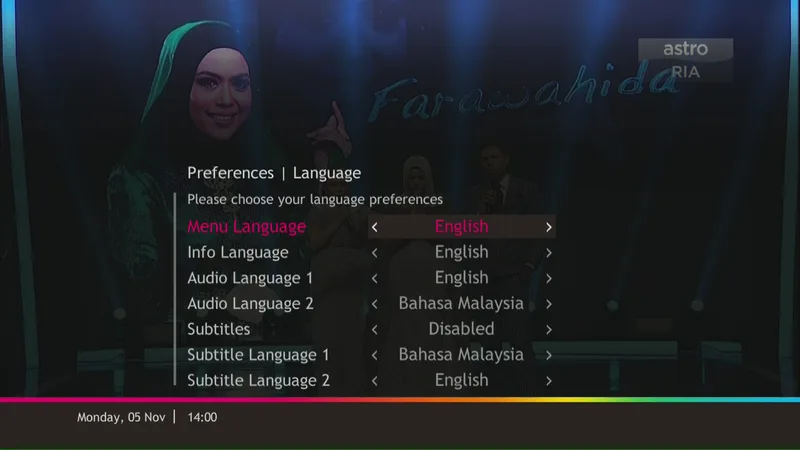
Step 5
Use the arrow buttons on your remote control to change your language and subtitle options
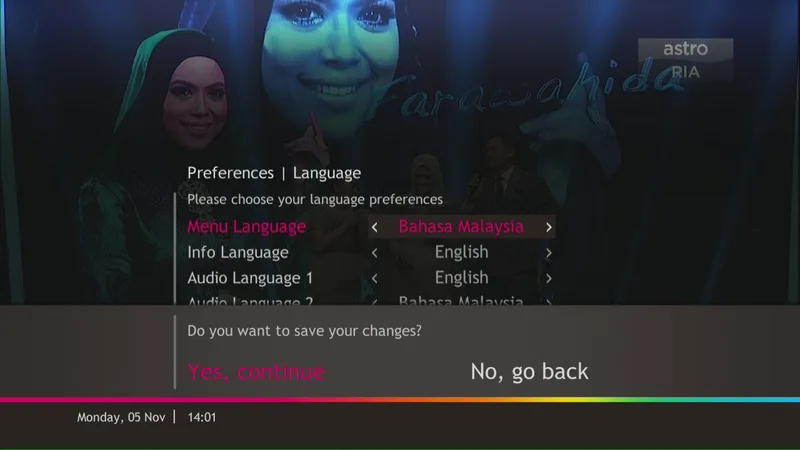
Step 6
Press the OK button on your remote control to save changes
To change language on current channel (during showtime)
Step 1
Press the I/II button on your remote control
Step 2
Use the up/down arrow button to toggle between Audio Language, Subtitles, Info Language and Menu Language
Step 3
Use the left/right arrow button to select your preferred language
Step 4
Press the OK button on your remote control to save changes
Step 1
Press the Home button on your remote control
Step 2
Select Settings
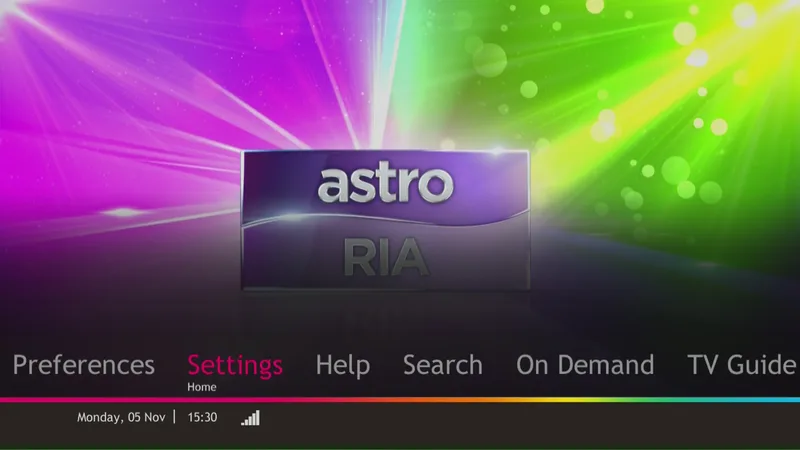
Step 3
Select Display
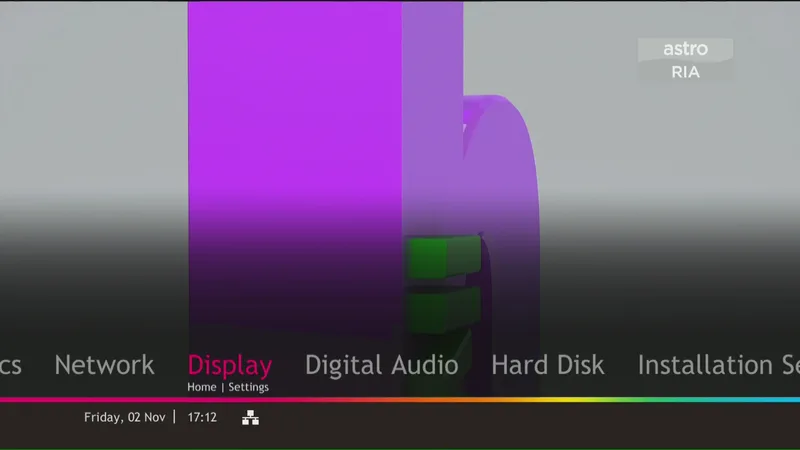
Step 4
Select Resolution
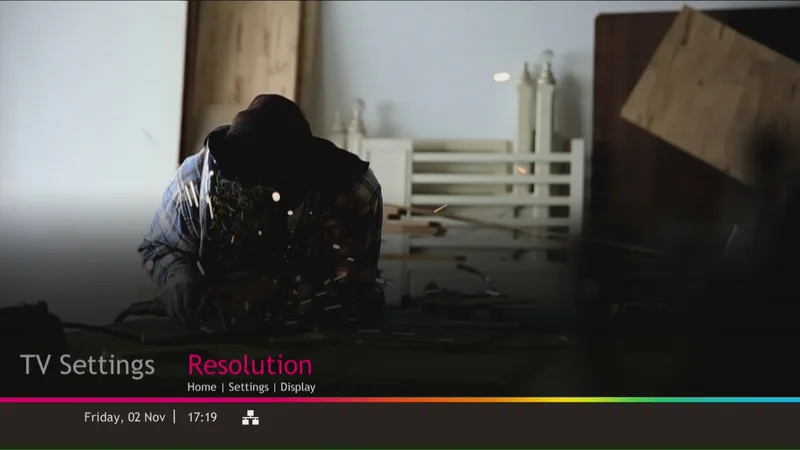
Step 5
Choose between the following screen resolutions:
<576i></576i>
<576p></576p>
<720p></720p>
<1080i> </1080i>
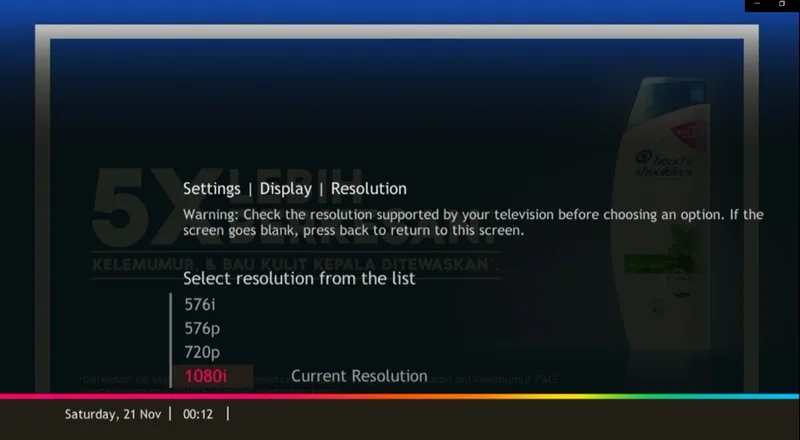
Step 6
Use the up/down arrow button on your remote control to select your screen resolution
Step 7
Press the blue button on your remote control to preview the new resolution
Step 8
Once you have selected the right screen resolution, press the Back/OK button on your remote control
Step 9
Select Yes, continue to apply changes
Step 1
Press the Home button on your remote control
Step 2
Select Settings
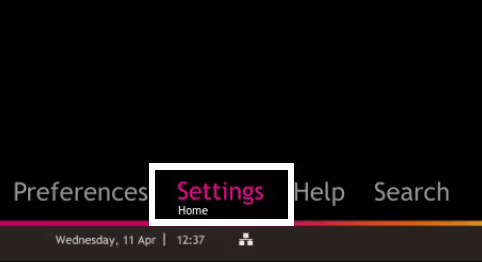
Step 3
Select Digital Audio
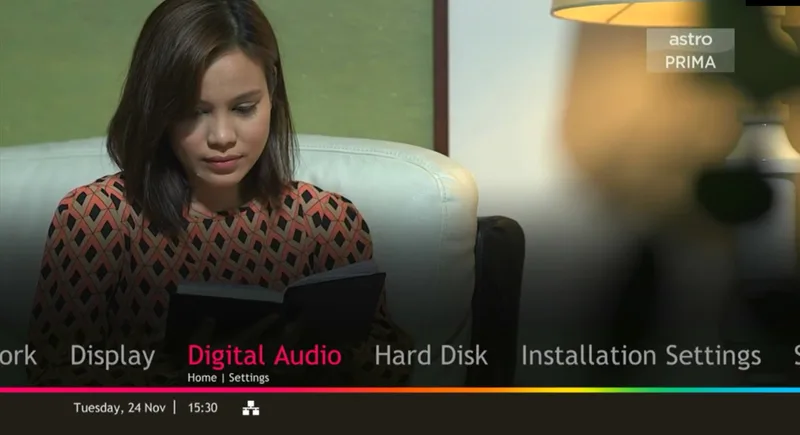
Step 4
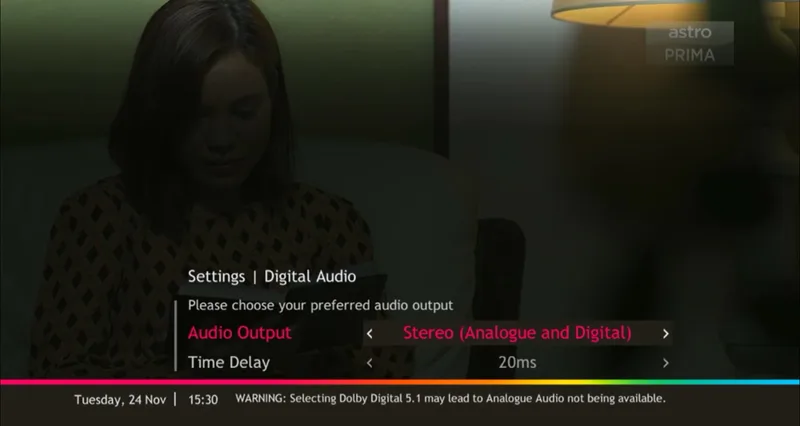
Choose between the 2 Digital Audio Output settings:
1. <stereo (analogue="" and="" digital)=""> Please use this if you are using the audio output from your TV / decoder</stereo>
2. <dolby digital="" 5.1="" (digital="" only)=""> Please use this if you are using the audio output from your home theatre system</dolby>
* The default audio output is Stereo. Dolby audio settings will function only on TVs that support Dolby
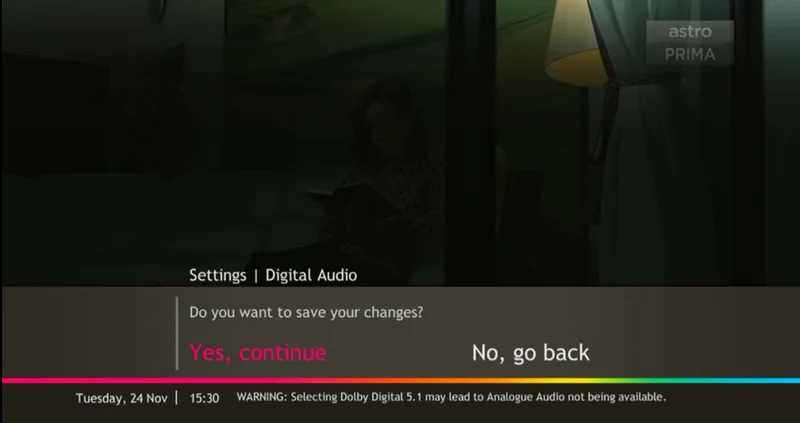
STEP 5
Select Yes, continue and press "OK" to confirm the setting change. Instead, select No, go back to cancel any changes.
Step 1
Click the Home button on your remote control
Step 2
Select Preferences
Step 3
Select Parental Control
Step 4
Enter the 4 digit PIN. Please note that the default PIN is 0000
Step 5
Select Change PIN
Step 6
Key in your current PIN, your new PIN and re-enter your new PIN to confirm
Step 7
Press the Back/OK button on your remote control
Step 8
Select Yes, continue to apply changes
* There is no limit set for keying in the PIN. To undo, press the left arrow button on your remote control
The Red light indicates Standby
The Green light indicates Active